Combining Paths into Blueprints
Example
- Errant Paths 1.2 and later
- Errant Paths 1.1
- Errant Paths 1.0 and prior
Large intersections or interchanges are often too complex to be contained within a single PathTemplate. A more practical approach is to create them from several Paths that are connected together. The plugin supports such a workflow and allows grouping multiple Paths into a Blueprint.
The Blueprint can be spawned by simply dragging it into the level and regenerating the Paths it contains.
Creating a BP from Paths preserves the connections between Paths, as well as manually painted PathLabels. This ensures you don’t lose any flexibility while working with Blueprints.
In the provided video examples we use a Path Group.
The Path Group is a Blueprint that acts as a reusable collection of Paths. It provides functionality similar to Unreal Engine's Level Instances and Child Actors, while being designed specifically for Path workflows.
Unlike native Child Actors, the Paths inside a Path Group are spawned only when the Path Group is first placed into the level. They are not recreated when the level is reopened, the Path Group is moved, or one of its properties changes. This preserves all work performed on the Child Paths, including manual edits and Path generation results.
Finally, because Child Paths are managed explicitly by Errant Paths, Path Groups avoid the unreferenced ("Ghost") Sub Actors that can sometimes appear when working with Unreal's native Child Actor system.
Large intersections or interchanges are often too complex to be contained within a single PathTemplate. A more practical approach is to create them from several Paths that are connected together. The plugin supports such a workflow and allows combining multiple Paths into a Blueprint. The Paths become ChildActors of that Blueprint.
The Blueprint can be spawned by simply dragging it into the level and regenerating the Paths it contains.
Creating a BP from Paths preserves the connections between Paths, as well as manually painted PathLabels. This ensures you don’t lose any flexibility while working with Blueprints.
Combining Paths into Blueprints is not supported in Errant Paths 1.0 and prior.
Apply instance changes to Blueprint and reset instance changes to Blueprint default
- Errant Paths 1.2 and later
- Errant Paths 1.1
- Errant Paths 1.0 and prior
Errant Paths provides its own implementation of Unreal Engine's Apply Instance Changes to Blueprint and Reset Instance Changes to Blueprint Default. Unlike Unreal's built-in version, it correctly handles Path-specific data, including PathSpline shapes, PathDescription properties, Labels, and other Path settings.
Apply Instances Changes to Blueprint updates the Blueprint defaults to match the current state of the Path Group, including the transforms and spline shapes of its Child Paths.
Reset Instances Changes to Blueprint Default restores the Child Paths to their Blueprint defaults and regenerates them.
These actions can be performed on an entire Path Group or on an individual Child Path by selecting its parent component.
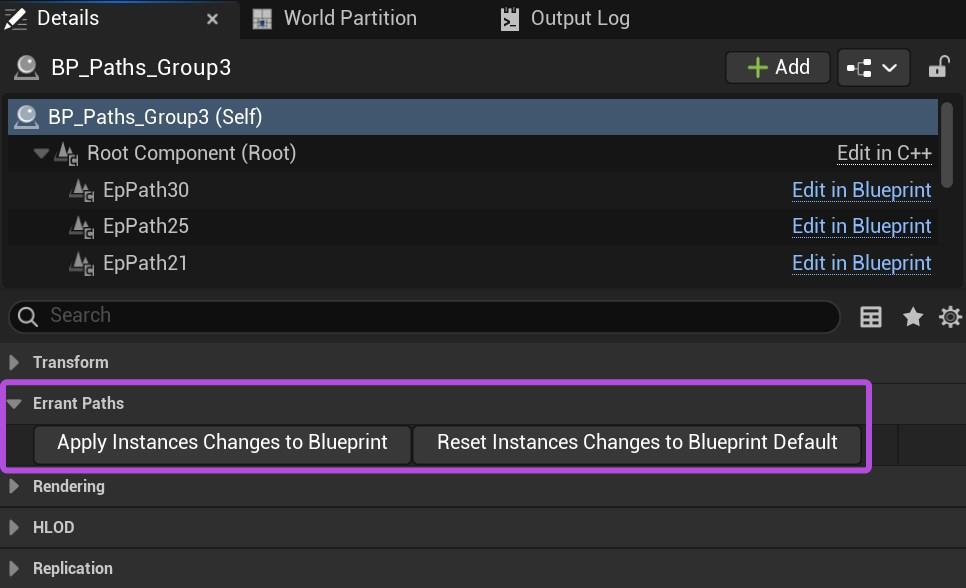
Applying changes updates only the Blueprint defaults. Existing placed groups continue using their current overrides until Reset Instance Changes to Blueprint Default is performed on each one.
Unreal Engine's built-in Apply Instance Changes to Blueprint does not fully support Paths. In particular, it does not preserve PathSpline shapes, and other Path-specific properties are immediately reverted to their Blueprint defaults. As a result, Unreal may display the following notification after you click these buttons.

Combining Paths into Blueprints is not supported in Errant Paths 1.0 and prior.
Selecting Actors
- Errant Paths 1.2 and later
- Errant Paths 1.1
- Errant Paths 1.0 and prior
When clicking on an actor in the viewport or Outliner, it’s not always clear which actor type you intend to pick. It could be:
- Attach parent (can be a Blueprint, Level Instance or just an actor that Paths are attached to).
- One of the Path actors.
- One of the Path's SubActors.
You can specify which actor type should be selected using the Select dropdown.
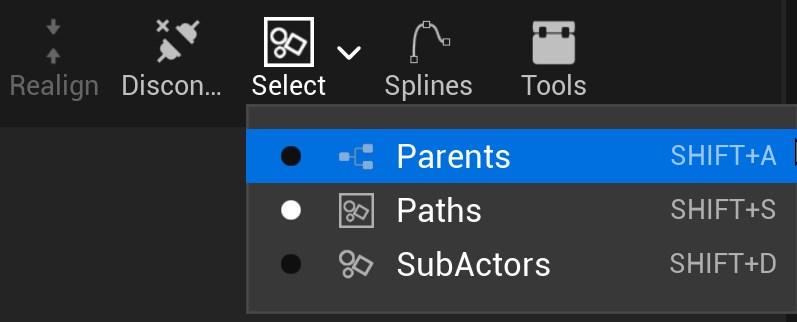
When clicking on a Blueprint in the viewport or Outliner, it’s not always clear which actor type you intend to pick. It could be:
- The Blueprint.
- One of the Path actors.
- One of the Path's SubActors.
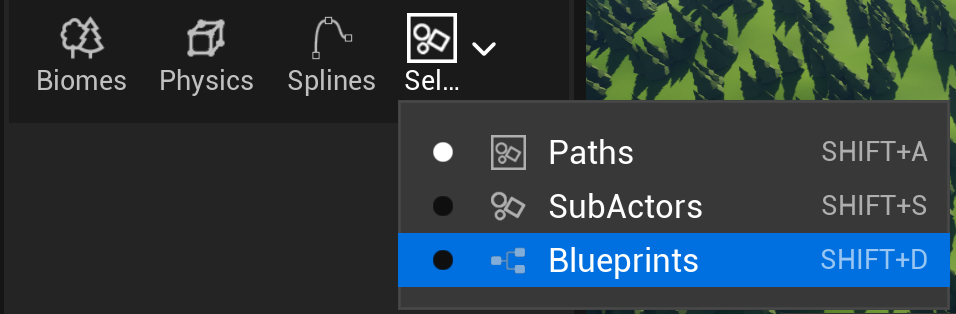
You can specify which actor type should be selected using the Select dropdown.